
Introduction
Hello everyone, if you are beginners in the coding field then you have come to the right place because today we are going to understand about github and see how we can publish or upload our project on it. See github is a cloud platform which developers use to store their code and it has been in use for a long time. Everyone can use it. It is absolutely free. Like if you have created a website and if you want to store its code somewhere so that if you need the code back then you can take that code and use it. And if you once When you upload code to Github, it's saved for life, and you can use it at any time.
You can also collaborate with people in groups on Github, but the method is different. Github is primarily used for saving code. If you want to host your project live, you can do that as well, which is completely free. Next, we'll take a step-by-step look at how to make your website live and what the process is. When you upload a project to Github, you can do it in two ways. You can do it directly from your Github account or from your code editor and in this you can also make the project private or public, if you do not want to show it to anyone then you can make the project private and by making it public everyone can access your project, so now let us see what is the process of uploading the code.
What Is GitHub and Why Do Developers Use It?
Well, I have told you a little bit in the introduction about what Github is but now let us see in a little detail why developers use it, first of all Github is a completely free platform in which you do not need to pay any separate charges which is a very good benefit for everyone because if you are thinking of using such tools then most of the tools are paid which many developers are not able to use and if you upload the code in Github then your code is saved and it is also secured which you can access for life time without any problem. There is no lengthy process to create an account in it, you can create an account in a few minutes and Github is such a platform which every company trusts, you can work by connecting Github to any platform and another benefit of this is that you can host the website for free which is a very good offer for students, along with this you can collaborate with other developers, storage is available along with the code, you have control over the code, you get benefit from it in every way.
What You Need Before Uploading Your Project
If you want to upload code to Github, then you will have to keep a few things in mind. If you are using Github for the first time, then you must have a Github account through which you will upload the code to Github. After that, you must have a laptop or computer and the project you want to upload. And most importantly, there are two ways to upload code to Github. One is to upload the file directly by logging into your Github account and the second is to upload the code with the help of your code editor i.e. vs code or git, in which you must be logged into Github vs code. If you complete all these requirements then you can upload the code.
How to Create a Github Account
github.com
After completing all these processes, your account will be successfully created and then you can use it.

How to Create Your First Repository
You might be new to the word Repository, but when we go to upload a project to Github, we have to create a Repository there. You have to follow the steps given below carefully.
How to Upload a Project Using the GitHub Website
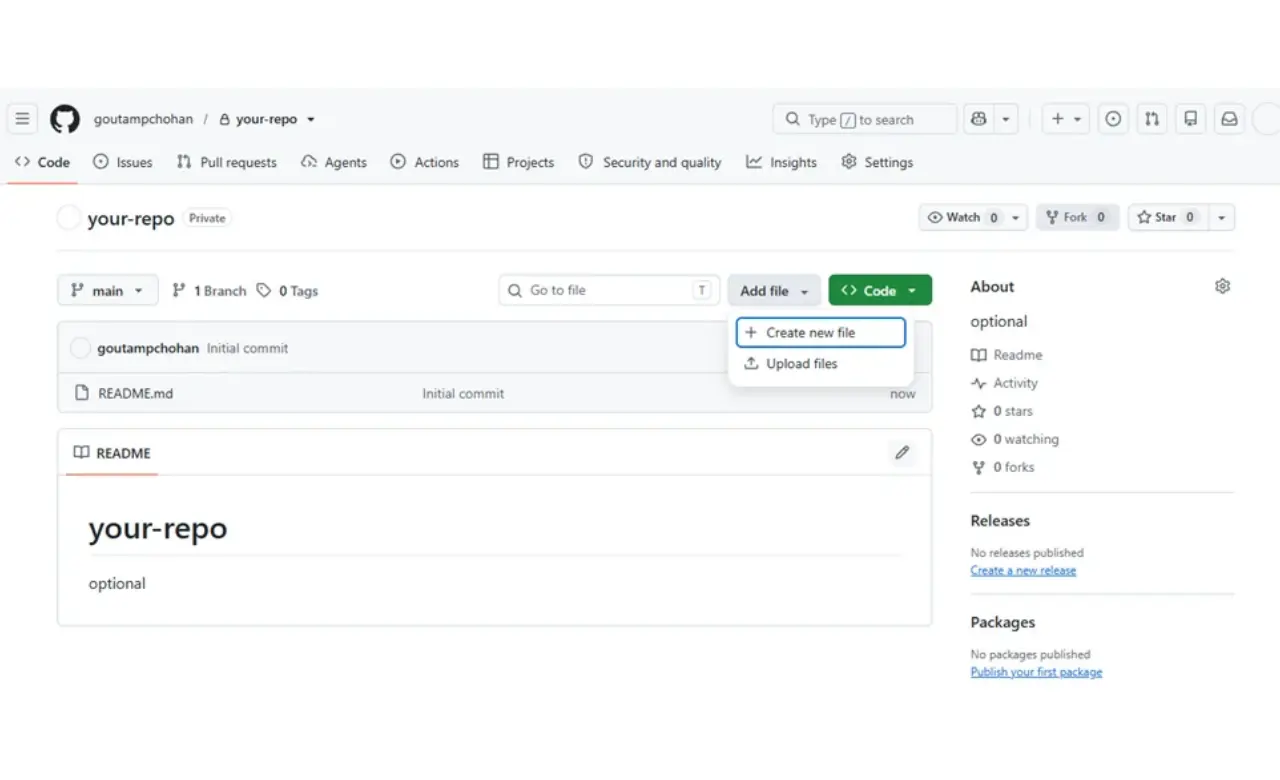
Till now we have created the repository in Github which has been created successfully, now we are going to upload the actual real code in the repository, so you have to follow all the steps given below carefully.
In this, commit means that whatever changes we make later will be saved in the history so that we do not face any problem later and at the same time, you have to keep one thing in mind that all the files have to be checked whether they are at the right place in the folder or not, otherwise there may be a problem while publishing the website later.
How to Upload a Project Using Git and VS Code
Friends, this method is for those people who have to make frequent changes in the project and they have to repeatedly update the project uploaded in Github. This method is a bit advanced and different. What happens many times is that if we have created an e-commerce project and if we have made any changes or updates in it, then it is also necessary to update its current updated code in Github, which we call commit. Now it is not possible to upload the code file again and again, so by using this method you can update the project without uploading it again and again in Github. Let us know how it works.
You will have to upload the project in the same way only then you can use this method properly. Basically what happens in this method is that you push the code to GitHub with the help of your vscode, in which you have to run some commands which you can see below.
The project you want to upload to GitHub needs to be opened in vscode and then run these commands in the terminal step by step, and your project will be uploaded to GitHub.
How to Check Whether Your Project Uploaded Successfully
If you have followed all the above commands and steps correctly, then your project will be uploaded successfully, but how do you check? If your project is not uploaded correctly, then the error terminal itself will show a red flag, and if everything is done correctly, then there is no problem. Now you have to open your Github and refresh it, you will find the name of your repo there. If you are not finding it, then you may have to follow the steps again because even a small mistake can create a problem. If it is showing the repo, then it is good, your project has been uploaded.
Conclusion
If you follow all the steps given above properly then your project will be uploaded easily but if I tell you in order then you should create a github account which will be created through gmail and create a repo in it and upload the file from your laptop in it. If you have a big project then you can also upload it with the help of vs code which has the advantage that you do not need to upload the updated code again and again. If you are getting an error while uploading your code then you can try again which will solve your problem.
Related Article:
Best Free Website Design Tools for Beginners 2026How I Built My First Portfolio Website
FAQ
Q1. Is GitHub free to use?
Ans: Yes, GitHub is free, where you can upload your project and share artwork with others, but some of its features are paid.
Q2. Can I upload a project without installing Git?
Ans: Yes, you can upload the project from the Github website without downloading Git, but be careful that the file size does not exceed the limit as there is a limit on uploading.
Q3. Can I upload HTML, CSS, and JavaScript projects to GitHub?
Ans: Yes, you can upload these files in it, but you can also publish it live.
Q4. Can I delete or update files after uploading?
Ans: Yes, you can delete and update project files after uploading them, the records of which are saved in the repository history.